Make a grocery list from your recipes
Turn your recipes into one grocery list: the same ingredient combined across recipes, sorted by aisle, shared with your household, and usable offline.
New to it? See what Platefolio’s grocery list does at a glance.
Add a recipe to your shopping list
Open a recipe, then More (on a phone, the ⋮ at the end of the row with the heart) and Add to shopping list. Every ingredient starts checked, except your pantry staples. Uncheck anything you already have, then tap Add to shopping list. Open shopping list takes you straight there.
If the recipe is already on the list, the button reads Replace on shopping list: adding it again replaces its lines instead of adding them twice. To buy for a bigger batch, add it again with more servings (see Scaled recipes).
To add a whole week of meals at once, use Add this week to shopping list on your meal plan.
Pantry staples
Pantry staples are things you generally have on hand and don’t want added to your shopping list every time, like salt or olive oil. When you uncheck something, tap Add to pantry staples next to it. From then on, it shows under Your pantry staples, unchecked, whenever you add a recipe that uses it. It’s still listed there, so tick it if you’ve run out and want to add it to your list.
A staple covers the everyday versions of itself too: butter covers unsalted butter, salt covers kosher and sea salt, and olive oil covers extra-virgin. A line like “salt and pepper” counts as a staple when both are in your pantry staples list, and “all-purpose or bread flour” when either is.
To see every staple at once, open Settings and find Pantry staples. That’s where you can add or remove one before a recipe ever asks for it.
Your household shares one set, so adding olive oil on your phone adds it for everyone.
Use the list
Open Shopping list from the top of any page, or from the tabs along the bottom on a phone (where it’s List). What’s left to buy is sorted into aisles, like Produce, Dairy and eggs or Canned and dry goods, in the order most stores are laid out. Anything Platefolio can’t place goes under Other. The aisle names under the progress bar (on a phone, the menu there) jump straight to that aisle, with a count of what’s left in each.
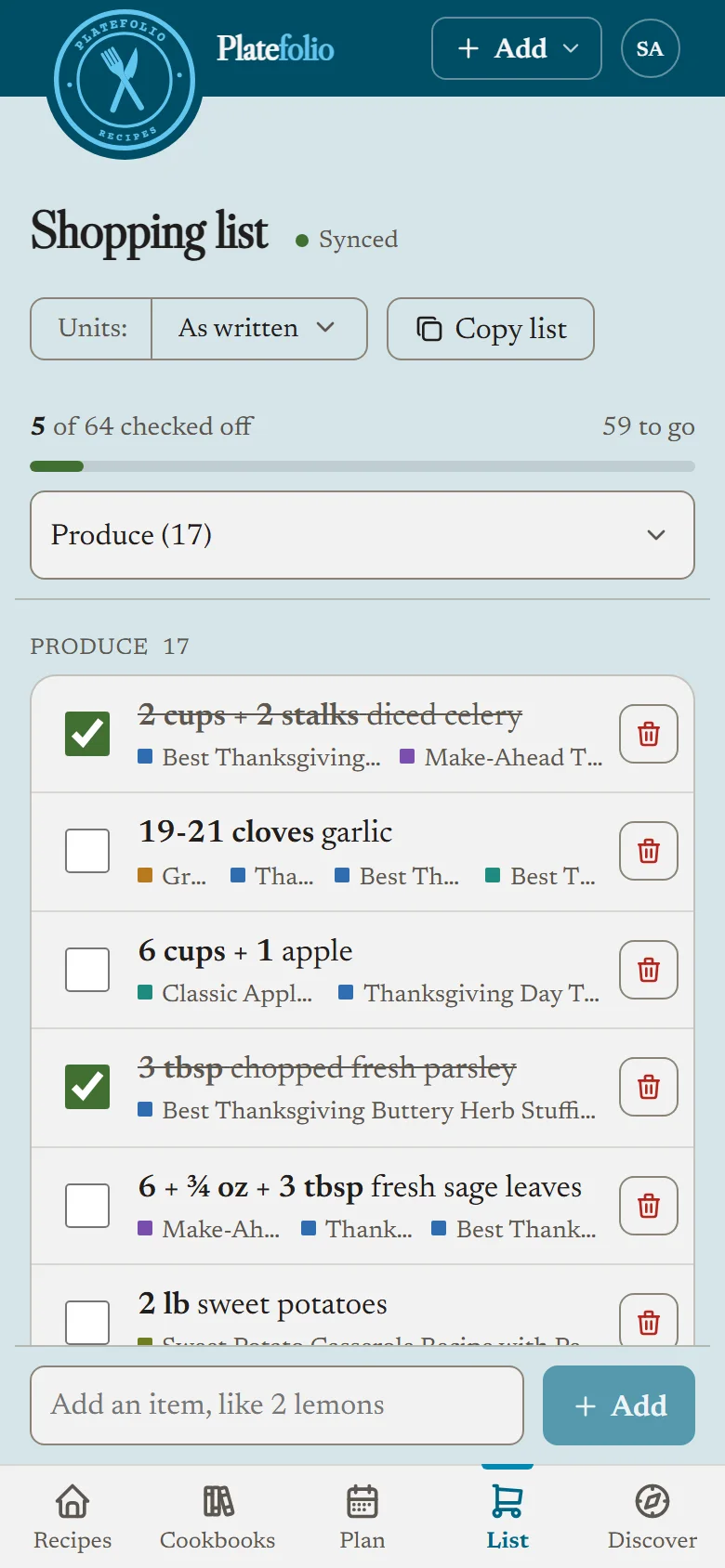
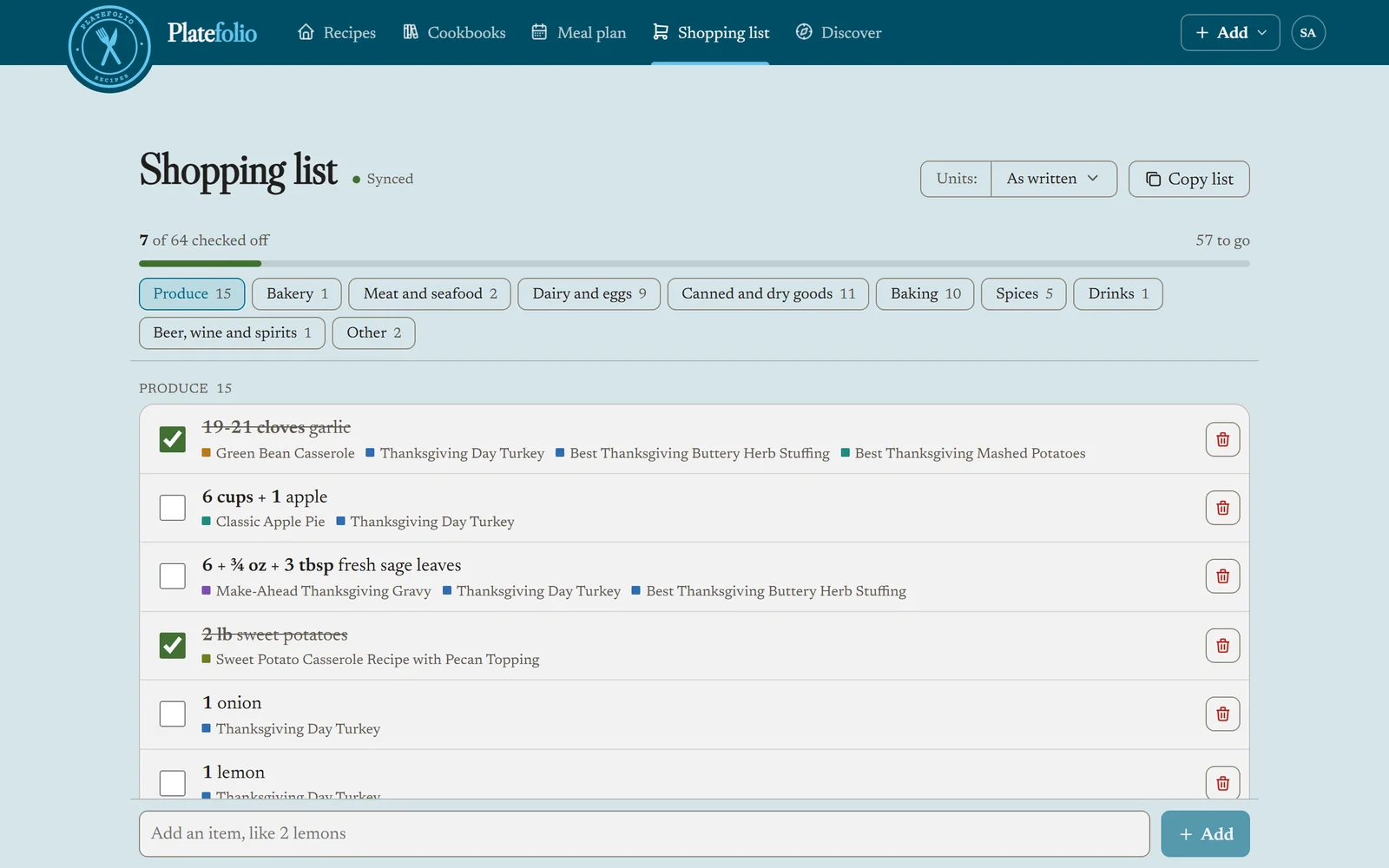
Tap a line’s checkbox to check it off, and tap it again to put it back. Checked lines move to Checked off at the bottom (tap it to see them), and Clear checked removes them all at once.
To change a line, tap its text, type, and press Enter (or tap anywhere else). Escape leaves it as it was. A line from a recipe still names the recipe after you change it.
To add something that isn’t from a recipe, type it in the box at the bottom, like “paper towels” or “2 lemons”, and tap Add. Under From recipes, the trash icon next to a recipe takes its lines off the list and leaves everything else. If another recipe on the list needs the same item, that recipe’s amount stays.
To start over, Clear list under the last item removes every item, checked or not. It asks first, and if you share your household, it clears the list for everyone in it.
Everyone in your household shares the same list, and a change on one phone shows up on the others as it happens.
In a store with no signal
Once you’ve opened the list on a device, it keeps a copy, so it still opens and you can keep checking things off with no connection. Your changes are saved on the device and sync when you’re back online.
The line under Shopping list says where things stand: Synced once your changes have gone out, Not synced yet, saved on this device while some are waiting, and Offline, showing this list as of the last sync when there’s nothing waiting but no connection either.
Now and then a change can’t be saved, for example one made offline just before you moved to another household. The list then says A change didn’t save: and names it. Make the change again if you still need it.
Copy it into another app
Copy list copies everything you haven’t checked off, one item per line in aisle order, with no aisle names or anything else mixed in. On phones and browsers that support it, Share list sends it straight to the grocery list app you already use.
How the list combines ingredients
When the same thing appears more than once, it becomes one line:
- Same unit, added up. “2 tbsp butter” for the cake and “1 tbsp butter” for the pan is “3 tbsp butter”.
- Small differences in how it’s written don’t matter. “1 onion” and “2 onions, diced” is “3 onions”, and “2 cloves garlic” and “3 garlic cloves” is “5 cloves garlic”. “Cold unsalted butter” is unsalted butter, “diced celery” is celery, and “granulated sugar” is sugar.
- Different units are added up in your units. “1 cup milk” and “120 ml milk” is “360 ml milk” in metric. Baking staples like flour and sugar cross between cups and grams, the same way they do on a recipe. Anything else measured by the cup stays apart from anything weighed.
- Different sizes stay apart too, like “2 large + 1 eggs”, and so do different can sizes.
- Ranges add both ends. “1-2 tbsp oil” and “1 tbsp oil” is “2-3 tbsp oil”.
Notes about how to use something are left off: “Salt to taste” is just “Salt”. A line whose amount isn’t at the start, like “Juice of 1 lemon”, stays as written.
If someone adds more of something you already checked off, the line comes back unchecked with the new amount, since there’s more to buy.
Scaled recipes
When you add a recipe, set Servings at the top of the sheet. It starts at whatever the recipe page is showing, and changing it there doesn’t change the page.
Units
The list shows amounts in your household’s units. To read it in others, tap Units at the top of the list and pick one. That lasts until you close the tab, and doesn’t change anyone else’s list.
Still stuck? Tell us what happened and we'll help.