Plan your week with the meal planner
Plan the week's meals, then send the whole week to one shopping list, scaled to each meal's servings, with the same recipe twice adding up. Tick off what you've cooked.
New to it? See what Platefolio’s meal planner does at a glance.
Your week
Open Meal plan from the top of any page, or from the tabs along the bottom on a phone (where it’s Plan). On a phone it shows one week, a day per row; on a computer, the week is seven columns side by side. The current day is marked. The arrows on either side of the dates go back or forward a week, and This week comes back to today. To jump further, tap the dates themselves: Pick a week opens a calendar where a dot marks every day with something planned, and any day opens its week.
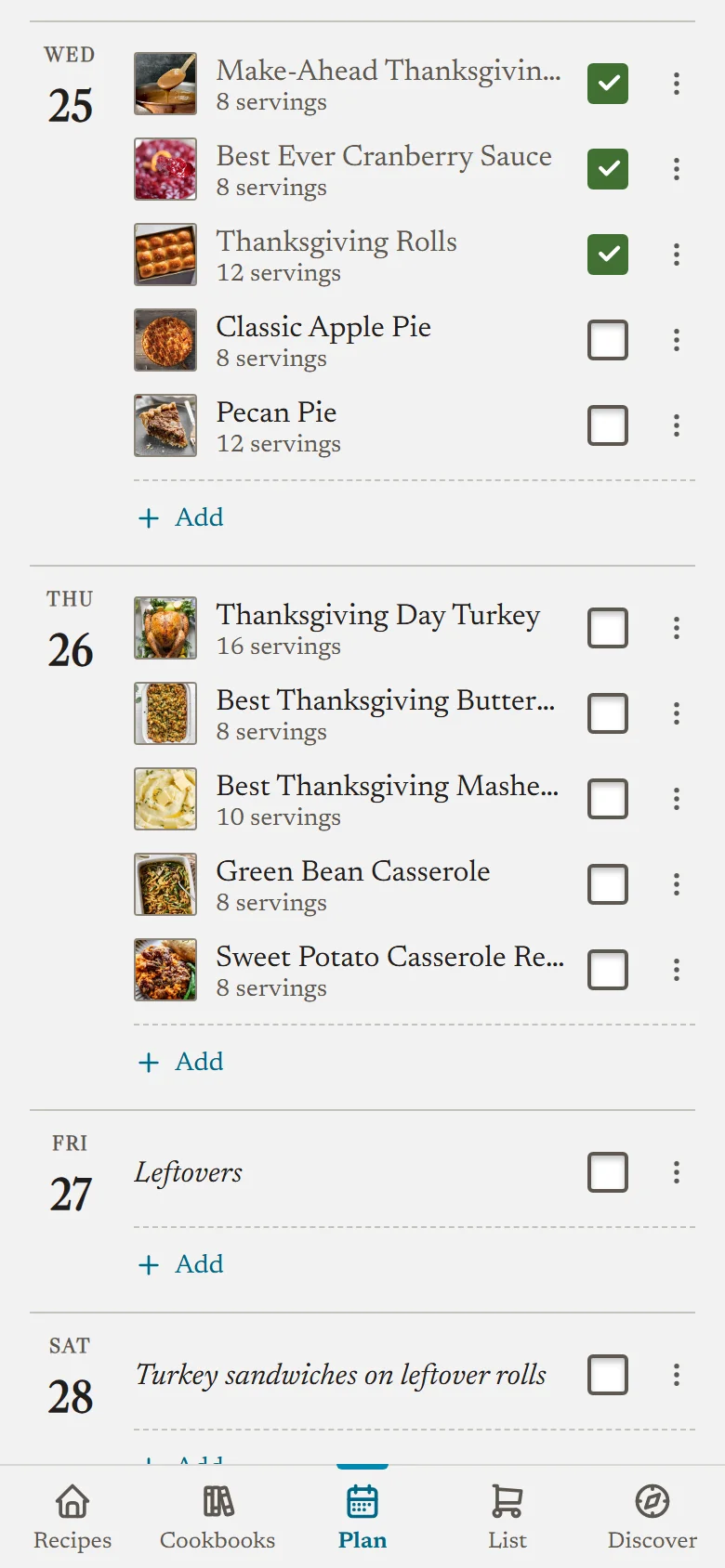
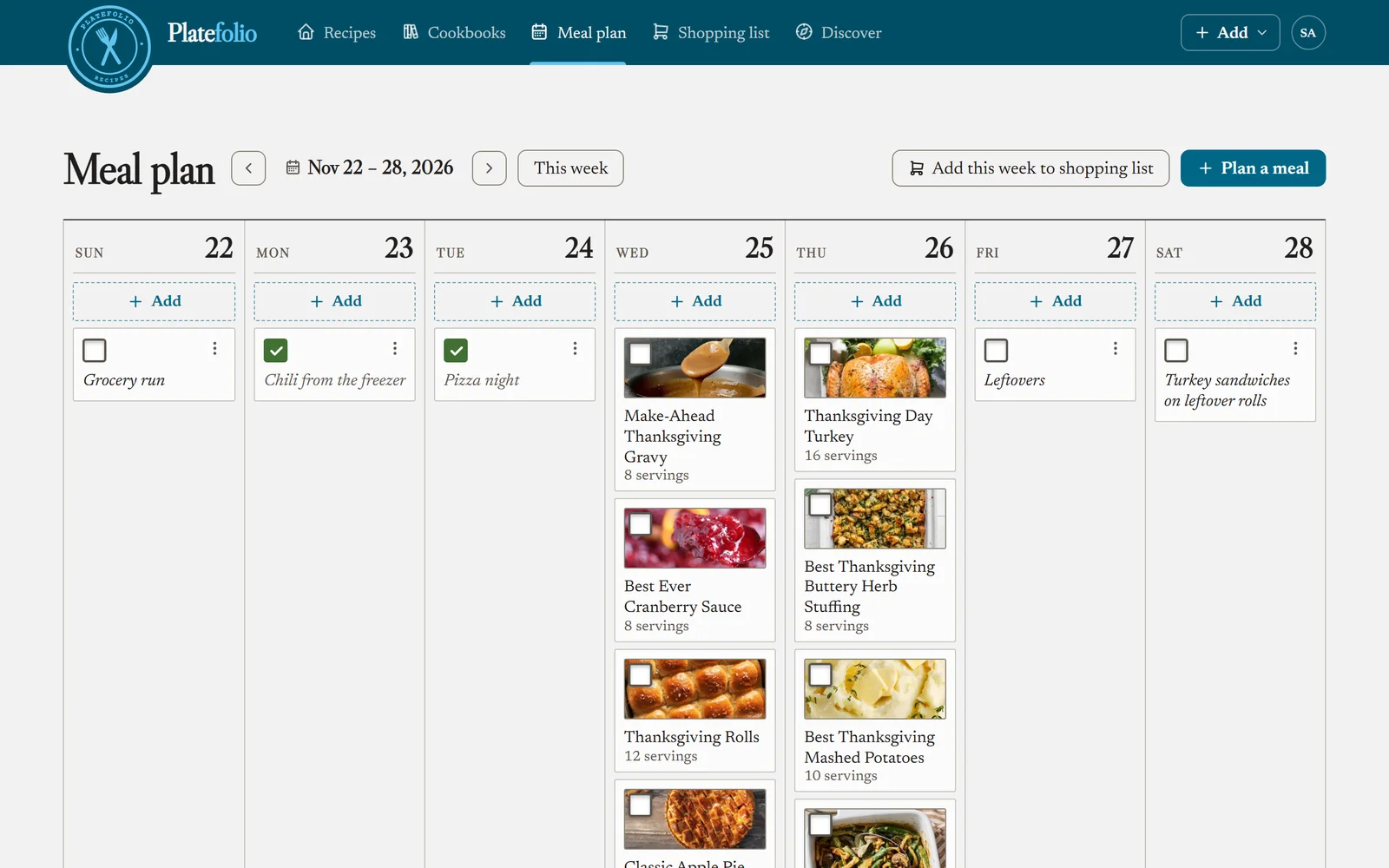
Everyone in your household shares one plan. You can plan up to two years ahead, and look back about a year and a half.
Add a recipe or a note
Tap Add under a day’s meals, or Plan something on an empty day, search your recipes by title, and tap one to put it on that day. On a computer, use Add at the top of a day, or Plan a meal at the top and pick the day there. To plan something that isn’t a recipe, like leftovers or a night out, type it under Or add a note and tap Add note.
You can also start from a recipe: open it, then More (on a phone, the ⋮ at the end of the row with the heart) and Add to meal plan. Pick a day from this week or next, or use Another day for one further out. Set the servings there if you’re making more or less than the recipe says, then tap Add to meal plan.
Servings
A recipe added from the plan starts at the recipe’s own servings. To change it, tap the options button on the meal, set the servings, and tap Save servings. On a recipe that doesn’t say how many it serves, it’s a scale instead, saved with Save scale. Once a meal has its own servings, tapping the number on it opens the same options.
Opening a recipe from the plan shows it at the meal’s servings, so the amounts are already scaled.
Edit a note
To change a note, tap the options button on it, change the text under Note, and tap Save note. A note can be up to 300 characters. Notes have no servings or photo.
Move things around
The options button on a meal also allows you to move it. Up and Down change its order within the day, and Move to lists every day of this week and next. With a mouse, you can drag a meal onto another day, or onto another meal to take its place.
To take a meal off the plan, tap its options button, then Remove from meal plan.
Copy last week
When a week is empty, Copy last week fills it with last week’s meals on the same days, at the same servings. A recipe that’s since been deleted is skipped.
Mark what you cooked
Tick the box on a meal (on a computer, in the corner of its photo) once you’ve cooked it. That also counts the recipe as made one more time. Ticking works with no connection: the plan says Cooked not synced yet, saved on this device until it can sync them.
Everything else, adding, moving and removing, needs a connection. A week you’ve opened before on a device still shows when you’re offline.
Send the week to your shopping list
Add this week to shopping list opens the ingredients for every meal you haven’t cooked yet, each at its own servings. A recipe planned twice adds up, so two nights of chili means twice the beans. Uncheck what you already have, as when you add a single recipe, and add the rest.
Adding the week again replaces its meals’ lines instead of doubling them. So if you change a meal’s servings after adding it, the meal says Shopping list is for the old amount: add the week again to bring the list up to date.
When you remove a meal whose ingredients are on the list, the plan asks what to do with them: Keep on shopping list, or Remove from shopping list to take them off too.
Which day the week starts on
Weeks start on Sunday or Monday depending on your region. To choose for the whole household, open Settings and find Week starts on under Meal plan. Only the household owner can change it.
Still stuck? Tell us what happened and we'll help.